Find quick answers to the most common questions about Epson printer scanner setup, troubleshooting, and optimization.
General Questions
What is an Epson printer scanner?
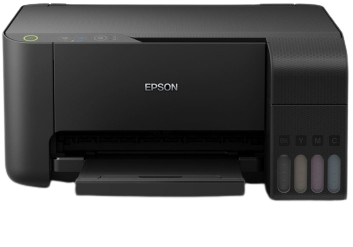
An Epson printer scanner is a multifunctional device that combines printing, scanning, and often copying capabilities in one unit. These all-in-one devices are designed for home, office, or business use and can handle various document and photo tasks.
Do I need special software to use my Epson printer scanner?
Yes, you'll need to install the appropriate Epson drivers and software for your specific model. These are usually available on the Epson website or included on a CD with your purchase. The software helps your computer communicate with the printer and provides additional features like scanning utilities and maintenance tools.
Can I use an Epson printer scanner with both Windows and Mac computers?
Most Epson printer scanners are compatible with both Windows and macOS. However, you'll need to download and install the correct drivers for your operating system from the Epson support website. Some older models may have limited Mac support, so check the specific model's compatibility before purchasing.
How do I find my Epson printer scanner model number?
The model number is usually located on the front, back, or bottom of your printer. Look for labels that say "Model" or "Product Name." You can also check the original packaging or purchase receipt. The model number typically includes letters and numbers (e.g., "ET-2750" or "WorkForce Pro WF-3720").
Setup & Installation Questions
How do I set up my Epson printer scanner for the first time?
Basic setup involves: 1) Unpacking and removing all protective materials, 2) Installing ink cartridges, 3) Loading paper, 4) Connecting to power, 5) Installing the software/drivers on your computer, and 6) Connecting the printer to your computer via USB or setting up wireless connection. Refer to your model's specific manual for detailed instructions.
How do I connect my Epson printer to Wi-Fi?
Most Epson printers offer multiple Wi-Fi setup methods: 1) Using the printer's control panel to select your network and enter password, 2) Using WPS (Wi-Fi Protected Setup) if your router supports it, 3) Using the Epson Connect website, or 4) Using the Epson Smart Panel app on your mobile device. The exact steps vary by model.
Where can I download drivers for my Epson printer?
Visit the official Epson support website at support.epson.net. Enter your model number, select your operating system, and download the recommended drivers and software. Avoid downloading drivers from third-party websites as they may contain malware or outdated software.
Can I set up my Epson printer without the installation CD?
Yes, you can set up your printer without the CD. Most modern computers don't even have CD drives. Simply visit the Epson support website, enter your printer model, download the latest drivers and software, and follow the on-screen installation instructions.
How do I connect my Epson printer to multiple computers?
If using USB, you'll need to physically connect the printer to each computer or use a USB switch. For wireless setup, connect the printer to your Wi-Fi network, then install the printer software on each computer on the same network. The printer should appear as an available device during installation on each computer.
Troubleshooting Questions
Why won't my Epson printer scan?
Common reasons include: 1) Incorrect or outdated scanner drivers, 2) Scanner service not running on your computer, 3) Connection issues (check USB or network connection), 4) Scanner glass is dirty, 5) Software conflicts, or 6) The scanner unit may need maintenance. Try reinstalling the scanner software first as this often resolves the issue.
What should I do if my Epson printer won't print?
First, check these basics: 1) Is the printer turned on and connected? 2) Are there any error lights or messages? 3) Is there paper loaded? 4) Are ink cartridges installed and not empty? 5) Is the printer set as default in your computer's settings? 6) Try turning the printer off and on again. If problems persist, check for driver updates.
How do I fix poor print quality?
For poor print quality: 1) Run the print head cleaning utility (found in printer maintenance settings), 2) Check ink levels and replace empty cartridges, 3) Align the print heads, 4) Use genuine Epson ink cartridges, 5) Ensure you're using the correct paper type setting, 6) Clean the print heads if possible, 7) Check for clogged nozzles using the nozzle check utility.
Why does my wireless connection keep dropping?
Wireless connection drops can be caused by: 1) Distance from the router (move printer closer), 2) Interference from other devices, 3) Router issues (restart your router), 4) Outdated printer firmware, 5) Power saving modes, 6) Network congestion. Try connecting via USB temporarily to isolate if it's a wireless-specific issue.
How do I clear paper jams in my Epson printer?
To clear paper jams: 1) Turn off and unplug the printer, 2) Open all accessible covers, 3) Gently pull out any visible paper in the direction of paper path (never force it), 4) Check the rear paper exit area, 5) Remove any torn pieces, 6) Close all covers securely, 7) Restart the printer. Refer to your manual for model-specific jam removal instructions.
Maintenance & Care Questions
How often should I clean my Epson printer?
Regular maintenance includes: 1) Weekly: Clean the exterior with a soft, dry cloth, 2) Monthly: Clean the scanner glass with approved glass cleaner, 3) As needed: Run print head cleaning cycles (but not excessively as this wastes ink), 4) Quarterly: Clean the paper feed rollers with a damp cloth, 5) Always: Keep the printer in a dust-free environment.
How can I extend the life of my ink cartridges?
To maximize ink cartridge life: 1) Use the "Economy" or "Draft" mode for non-important documents, 2) Print in black and white when color isn't needed, 3) Avoid frequent print head cleanings, 4) Turn off the printer properly (not just unplugging), 5) Store spare cartridges properly in a cool, dark place, 6) Use genuine Epson ink for best results and printer longevity.
Should I leave my Epson printer on all the time?
Epson recommends leaving your printer powered on. Modern Epson printers have energy-saving features and will enter sleep mode when not in use. Turning the printer completely off and on frequently can cause more ink to be used for initialization cleanings. However, for extended periods of non-use (weeks or months), it's fine to turn it off.
How do I update my printer's firmware?
To update firmware: 1) Ensure your printer is connected to the internet (wireless or Ethernet), 2) Access the printer's network settings via the control panel, 3) Look for "Update" or "Firmware" options, 4) Follow prompts to check for and install updates. Alternatively, use the Epson Software Updater tool on your computer. Never interrupt a firmware update once it begins.
Mobile & Wireless Printing Questions
Can I print from my smartphone or tablet to my Epson printer?
Yes, most modern Epson printers support mobile printing. Options include: 1) Epson iPrint app (iOS/Android), 2) Apple AirPrint for iOS devices, 3) Google Cloud Print (though being phased out), 4) Email printing via Epson Connect, 5) Direct wireless printing from mobile devices. Your printer must be connected to the same Wi-Fi network as your mobile device.
What is Epson Connect and how do I use it?
Epson Connect is a service that enables printing from anywhere via email, mobile apps, or the web. To set it up: 1) Register your printer at epsonconnect.com, 2) Get a unique email address for your printer, 3) Send documents to that email to print remotely. It also enables Google Cloud Print and printing from Epson's mobile apps.
How do I print from a Chromebook to my Epson printer?
For Chromebook printing: 1) Ensure your Epson printer supports Google Cloud Print (most newer models do), 2) Set up Google Cloud Print through the Epson Connect registration process, 3) On your Chromebook, go to Settings > Advanced > Printing, 4) Add your printer through Google Cloud Print. Some Epson models also support IPP Everywhere for direct printing.